
SEO Strategy
Before You Add More Competitor Monitoring Capacity
Sep
When the watchlist grows, the timing still matters
A competitor monitor can feel stable for months and then suddenly start to feel cramped. The product list grows, more rivals matter, and the default allowance no longer covers the site that is doing the real work. That is the point where many store owners reach for extra capacity.
With Oltora Price Monitor – Additional Product Capacity, the decision is straightforward in one sense: each quantity adds 1,000 additional monitored products to the selected WordPress website. But there is a second part to the decision that should not be ignored. The added capacity stays tied to the current annual license term. It increases room only; it does not renew or extend the license.
That distinction is what keeps the upgrade useful instead of awkward. If you treat capacity and license timing as the same question, you can end up adding room to a setup that will not stay active long enough to justify it.
Start with the calendar, not the cart
Before you add more capacity, check how much of the annual term is left on the site that needs it. The point is not to calculate a perfect formula. It is to avoid buying extra monitoring room without first understanding how long that room will remain available.
This matters most when the site is already close to the edge of its current monitoring limit. If you expect the installation to keep doing the same work for the rest of the term, additional capacity can make the setup usable again. If the term is close to expiring, the added room may solve the immediate problem but still leave you with a short planning window.
A simple readiness check helps:
- Confirm which WordPress installation needs the added monitoring room.
- Check the current monitored-product count against the default allowance.
- Review how much time remains on the annual license.
- Decide whether the upgrade is for the current term only or part of a longer monitoring plan.
Match the increment to the actual gap
The add-on is sold in 1,000-product steps, so the first useful question is how wide the gap really is. If a site currently monitors 1,000 products and you need 2,000 more room, quantity 2 moves the total to 3,000 monitored products for that installation. That makes the planning concrete instead of vague.
The advantage of that structure is that you do not need to overbuy just to create a buffer. You can scale in increments that match the watchlist you already have. That keeps the upgrade tied to a real workload rather than to a guess about future catalog growth.
If you are managing several WordPress installations under the same license, the same logic still applies site by site. One site may need a larger monitoring allowance while another stays at the base limit. The add-on is applied to one selected installation, so the preparation step is deciding where the pressure actually sits.
Check the failure mode you are trying to avoid
Most buyers do not need more capacity for abstract reasons. They need it because something in the workflow is starting to fail. The site may no longer be able to keep the competitor set it was built to watch, or the team may be forced to decide which products deserve to stay in monitoring and which ones have to wait.
That is the risk this add-on is meant to address: a useful monitoring setup becoming too small for the catalog it is supposed to cover. In practice, the failure mode is rarely dramatic. More often it looks like partial coverage, delayed attention, or a growing list that no longer fits the default limit cleanly.
If that is the problem, extra capacity is a practical fix. If the real problem is that the site itself is no longer the right place for the monitoring work, then the upgrade is only part of the answer. The add-on does not change the underlying license structure, and it does not move the workflow somewhere else.
Plan the upgrade as part of the active term
Because the additional capacity remains active only until the current annual license expires, it works best when you treat it as part of an active operating period. That is useful for teams who need more room now and already know the site will continue to carry the monitoring load through the remaining term.
It is less useful if the license is about to end and the site plan has not been settled. In that case, the upgrade may still solve an immediate problem, but it should be purchased with full awareness that it does not reset the clock.
The cleanest way to think about it is simple: base capacity is what the installation already includes; purchased capacity is the extra room that keeps the watchlist usable when the default limit is no longer enough. If you know which site needs the space, how many additional products are missing, and how much of the annual term remains, the decision becomes much easier to justify.
What to decide before you implement it
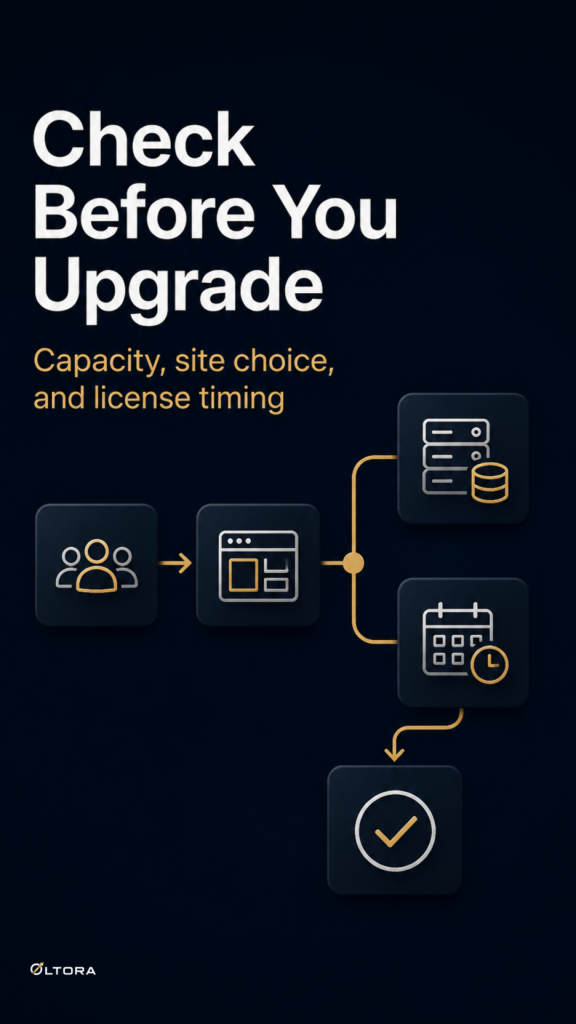
Before you add more capacity, make three decisions in order.
- Which WordPress installation needs the extra monitored products?
- How many 1,000-product increments match the gap you actually have?
- Does the remaining annual term justify adding room now?
If those answers line up, the upgrade fits the workflow you already have. If they do not, the safer move is to pause and re-check the monitoring plan before you buy.