
Custom Development
How to Configure Cloud-Assisted Fraud Screening for WooCommerce Checkouts
Oct
When a growing e-commerce store starts attracting repeated suspicious checkout attempts, basic local security rules often reach their limit. Local background filters only evaluate what happens inside your specific hosting database. While that background layer works fine for stopping casual errors, persistent actors routinely mutate IP addresses, email variations, and contact details to slip past static rules. Upgrading to OrderFort Premium for WooCommerce | Advanced Fraud Protection by Oltora introduces a real-time cloud layer that shares threat intelligence across the Oltora network. Yet turning on advanced risk screening requires careful preparation. If you connect external checks without establishing clear administrative boundaries, you risk creating unnecessary friction for legitimate shoppers or drowning your team in unorganized alerts.
Before you activate advanced fraud checks on a live store, your team needs a structured readiness framework. This means deciding who owns the blocklist controls, mapping out how local validation interacts with cloud signals, and verifying that your checkout flow maintains high conversion speed for normal buyers.
1. Establishing Admin Ownership and Initial Plugin Setup
The first practical decision involves licensing and installation boundaries. A single store license covers one production WooCommerce environment. After purchase, you receive your download instructions and license key by email. Installing the software on your WordPress staging site first allows your team to verify compatibility with existing payment gateways and shipping calculators before touching production traffic.
During this initial configuration phase, assign a designated staff member to manage security alerts. Cloud-assisted screening operates in real time, pulling shared threat indicators from connected stores across the network. Because these checks happen during order placement, your administrator must understand how to interpret incoming risk signals so that customer disputes are handled quickly and consistently.
2. Balancing Local Validation Against Network Intelligence
A common pitfall during setup is relying entirely on automated blocking without reviewing the underlying traffic patterns. Effective fraud mitigation requires a balanced architecture where local background checks handle routine filtering, while network-level signals catch coordinated abuse earlier in the checkout sequence.
-
Local Base Layer: Keeps basic protection running quietly in the background without exposing your team to constant administrative noise.
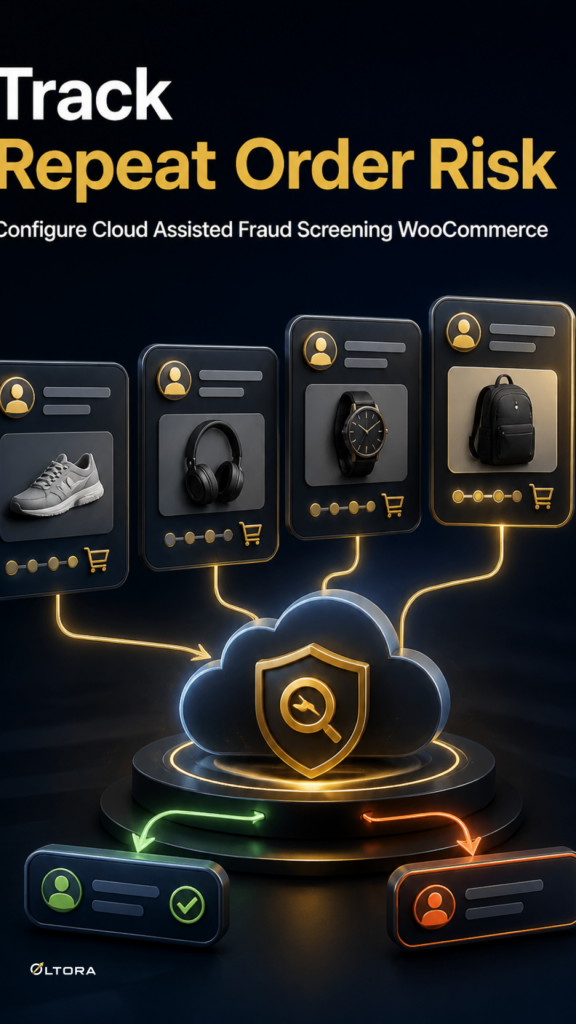
Cloud Intelligence Layer: Adds real-time indicators from the Oltora network to flag repeat offenders who use similar IP ranges or contact details across different sites.
Manual Override Controls: Empowers your staff to apply temporary or permanent blocks to specific emails, phone numbers, and IP addresses when a clear pattern emerges.
By keeping these tiers distinct, your store can screen for risk without slowing down the checkout experience for regular customers.
3. Pre-Launch Checklist for Risk Screening Operations
Before flipping the switch on live cloud-assisted screening, run through a final readiness check to ensure your store is prepared for active risk management:
- Verify that your license key is active and communicating properly with the Oltora network.
- Confirm that staff members understand how to review flagged checkouts without disrupting fulfillment timelines.
- Establish internal guidelines for when an IP or email address qualifies for a permanent blocklist entry.
- Test the checkout workflow with a controlled test order to ensure validation hooks execute smoothly.
Taking the time to map out these operational rules ensures that advanced security measures protect your revenue without introducing friction into the buying journey.