
Custom Development
How to add multiple download files without redoing every WooCommerce product
Sep
If your store sells digital products, the pain usually starts after the first file is already in place. One manual, one PDF, or one ZIP package is manageable. The trouble appears when a second file needs to be attached to several products and the same settings have to be repeated again and again. That is when a simple update turns into a catalog maintenance task.
The real issue is not the file itself. It is the structure around the file: which products should receive it, whether existing downloads should stay attached, and how to update the products without opening each one separately. WooCommerce gives you the product records. The Media Library holds the source files. A bulk workflow connects the two without forcing you to rebuild every listing.
For store owners who manage software, templates, ebooks, manuals, audio, video, or archives, that distinction matters. A clean workflow keeps the original downloads intact when they should remain in place and adds new files only where needed. If you want to handle that inside the normal admin area, File Bulketor is built for that job.
Why adding one more file can still be awkward
WooCommerce treats downloadable content as part of the product record, not as a loose attachment you can ignore. That is useful because it keeps the order and customer-download system connected to the product itself. It also means every file change has a practical consequence. If a product already has one working download, adding a second file should preserve that first file unless you deliberately want to replace it.
That is where manual editing becomes risky. When you repeat the same steps across multiple products, it is easy to miss a checkbox, attach the wrong file, or overwrite a file that should have stayed. The more products share the same asset, the more expensive that small mistake becomes.
A bulk editor helps because it separates the decision from the repetition. First you decide whether the new file should be added, replaced, or removed. Then you apply that choice across the selected products in one pass.
Keep three parts separate: products, files, and download settings
If the process feels messy, it usually helps to name the moving parts.
- Products are the records you want to update in WooCommerce.
- Files are the items already stored in the WordPress Media Library.
- Download settings decide whether the product is downloadable and virtual, and how the assigned files should behave in the catalog.
Those parts are related, but they do not do the same job. A file can exist in the Media Library without being tied to a product. A product can exist without a download. And a downloadable product can carry more than one file. Once you keep those roles separate, the update becomes much easier to plan.
That is also why a Media Library-based workflow is cleaner than juggling remote URLs or server paths. You stay inside WordPress, pick the file you already manage there, and apply the change to the product set without switching systems.
When adding a file is better than replacing one
There are three different update jobs hiding behind the word “edit.”
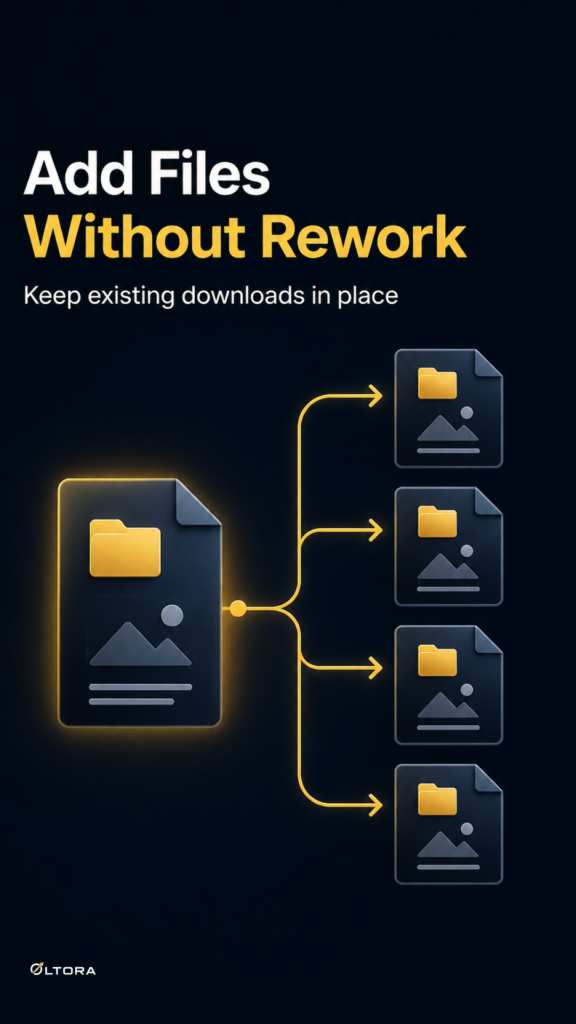
- Add a file when the product already has a working download and the new file should join it.
- Replace a file when the old download should be removed and swapped out entirely.
- Remove files when the selected products should no longer offer downloadable content.
If you are attaching a second manual, a support document, a license guide, or a revised PDF that should sit beside an existing file, adding is the right action. The original file remains in place, and the new one becomes part of the product’s download set.
If the older file is outdated and should no longer be offered, replacement is the cleaner move. That avoids leaving customers with both the old and new versions when only one should remain available.
The mistake to avoid is choosing replace just because it feels simpler. For products that already deliver a valid file, replacement can erase more than you intended. Adding preserves what is already working.
What a bulk update looks like in practice
A practical workflow inside WooCommerce usually follows the same shape:
- Select the products you want to update from the product list.
- Open the bulk edit action.
- Choose the Media Library files you want to attach.
- Decide whether the new files should be added, replaced, or removed.
- Set the selected products as Downloadable or Virtual if needed.
- Apply the update once.
That sequence matters because it keeps the state changes together. You are not just uploading a file. You are updating the product record, the download assignment, and the product type flags at the same time. When those steps are split across separate edits, inconsistencies creep in.
File Bulketor supports that kind of workflow by adding bulk downloadable-file controls to the normal WooCommerce editor. It lets you assign more than one file, and each selected file creates another optional row so you can keep adding files without having to decide the full file count in advance.
Why the admin workflow matters for digital catalog maintenance
For digital stores, this is less about convenience than about keeping the catalog coherent. A course bundle may need a ZIP file and a PDF guide. A plugin listing may need a package archive and a setup manual. A photography product may need a preview pack and a usage document. In each case, the files belong together, but they do not all need the same handling.
When the same asset needs to appear across several products, a bulk edit protects your time and your setup. You can preserve existing downloads where needed, add new files where appropriate, and keep the product flags aligned. That means fewer product-by-product corrections later.
It also helps teams that maintain the catalog over time. A cleaner bulk routine is easier to repeat than a one-off manual sequence remembered differently by each editor.
One more detail that is easy to miss
Assigning a file to a product does not change the fact that the original Media Library item still exists as a separate source file. The product download is managed through WooCommerce’s normal order and customer-download system, but the source file remains in the Media Library.
That is why the update method matters. You want to know whether you are preserving existing downloadable assignments, replacing them, or adding a new file beside them. Once you decide that up front, the workflow stays controlled instead of accidental.
If your next task is to give one product an additional download or apply the same second file across several products, the safest path is the one that keeps the current working setup intact while you add only what is new. For many digital catalogs, that is the difference between a tidy update and an afternoon of cleanup.