
SEO Strategy
Should You Add or Replace Download Files in WooCommerce?
Aug
When a file update should preserve what is already there
If you manage downloadable products in WooCommerce, the hardest part is often not finding the file. It is deciding what should happen to the files already attached to the products. A bulk update can either preserve existing downloads, replace them entirely, or clear them out. Those are different jobs, and mixing them up is how a clean catalog turns messy.
That choice matters most when products already carry working downloads. A revised manual, a new PDF pack, or an updated ZIP file should not force you to rebuild every product if the older files still belong there. In those cases, preserving the existing assignment is usually the better move. If you need a reset, replacement makes more sense. If the products should no longer offer downloads at all, removal is the right call.
File Bulketor – Bulk Downloadable Files for WooCommerce is built around that decision. It adds bulk controls for downloadable files inside the normal WooCommerce editor, so you can choose whether to add files, replace them, or remove them without opening every product one by one.
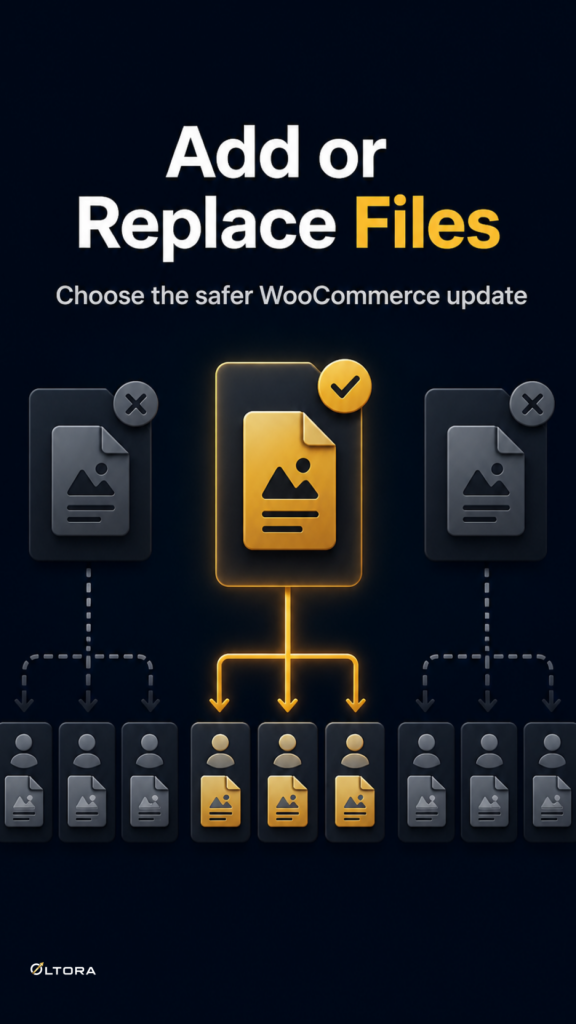
Add, replace, or remove: three different bulk jobs
Before changing a large product set, it helps to separate the three actions by intent rather than by speed.
- Add files when the new download should join what is already attached.
- Replace files when the old file set should be removed and swapped for a new one.
- Remove files when the selected products should no longer carry downloadable files.
That distinction sounds simple, but it prevents the most common admin mistake: using a replacement-style update when the real need is preservation. A product that already sells a guide, a license file, and a support PDF should not lose one of those assets just because a new file is being added to the same group. On the other hand, a stale archive that should be retired needs a full replacement or removal, not another file layered on top of the old one.
File Bulketor supports all three paths, which means the workflow can match the catalog instead of forcing the catalog to match the workflow.
How to decide which action fits the catalog
The fastest way to choose is to ask what the customer should receive after the update.
Choose add when the product needs one more supporting file, but the existing downloads are still correct. This is a good fit for software packages, where a ZIP file may stay in place while documentation is added later. It also works for templates, courses, and digital archives that gain new companion materials over time.
Choose replace when the old file set is no longer the right version. If you have revised a manual, rebuilt a product bundle, or changed a resource pack so thoroughly that the old files should not remain attached, replacing avoids confusion. The key advantage is clarity: every selected product ends up with the updated set only.
Choose remove when the product should stop offering downloads. That can be the right step for listings that are no longer digital, products that have been restructured, or items that should no longer expose file attachments in the admin record.
Those choices are easier to make when you are dealing with a few products. They become much more valuable when the same files have been repeated across a larger digital catalog.
Why preserving existing files is often the safer default
When a product already has download history in the admin, preservation is usually the lower-risk option. You keep the existing setup intact and only add the missing file or files. That reduces the chance of stripping away a resource that still belongs to the product.
For a store selling manuals, ebooks, audio packs, or software support files, that can be the difference between a tidy update and an accidental reset. A bulk edit that preserves the current downloads is useful when the product is stable and only needs one more asset. It keeps the original file relationships visible instead of flattening them into a new version.
Replacement has its place, but it is a stronger action. Use it when the current assignments are no longer useful. If the product has moved on from the old file set, replacing keeps the catalog from carrying dead weight. If the file still matters, though, replacement creates unnecessary loss.
File Bulketor’s add, replace, and remove options are helpful because they make that distinction explicit inside the same bulk action.
Working from the WordPress Media Library keeps the update orderly
Another practical decision is where the downloadable files come from. File Bulketor uses the WordPress Media Library, which keeps the bulk update anchored in the files already stored in your site. That matters when you need to apply the same document, archive, or package to multiple products without hunting across separate systems.
The plugin also creates additional file rows automatically as you select more files, so you can assign multiple downloads in one action. That is useful when a product needs a primary file plus supporting materials. The key point, though, is still the update method: whether you are adding to what exists or replacing it, the action is chosen inside the same workflow.
There is no need to treat every catalog update as a fresh rebuild. A digital store often needs one of two things: a careful extension of the current setup, or a clean reset. The bulk editor should let you choose either one without making the process harder than the catalog itself.
Use the same bulk tool for the setting change too
File Bulketor does more than manage file assignments. It also lets you set products as Downloadable and Virtual in bulk. That is useful when the file decision and the product-type decision need to happen together.
If you are attaching a PDF, an ebook, a ZIP package, or another digital asset to a group of products, the file update and the product settings usually belong in the same pass. That keeps the record aligned with the way the product is sold. If you are removing downloads, it can also help to clear out the settings that no longer fit.
The important part is not that every product ends up in the same state. It is that each product ends up in the right state for the change you are making. Preservation, replacement, and removal are all valid. The mistake is using the wrong one for the job.
A practical rule for digital catalog updates
If the existing file still belongs to the product, preserve it and add only what is missing. If the file set is outdated, replace it. If the product should no longer carry downloads, remove them. That simple rule keeps the bulk edit tied to the real editorial decision instead of the fastest click path.
For WooCommerce stores that manage software, manuals, ebooks, templates, audio, video, or other downloadable goods, that is the real value of a bulk file tool. It gives you a controlled way to update the catalog without losing track of what was already there.
File Bulketor makes that choice easier to execute inside WooCommerce, so the update reflects the product you actually want to sell.