
Email Marketing
How to Handle Third-Party Mailbox Refusals Without Breaking Your Site
Oct
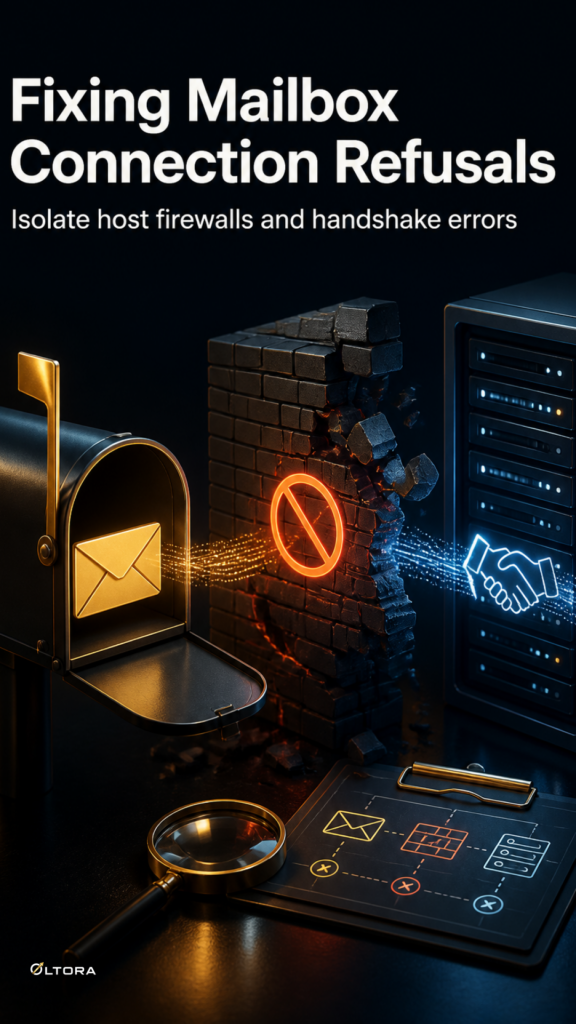
When an external email provider suddenly rejects your IMAP or SMTP handshake, the disruption usually hits right when you open your dashboard to reply to customer messages. Incoming mail stops syncing, outgoing notifications fail, and your WordPress site is left unable to communicate with your mail host. For site administrators relying on Oltora Inbox Premium Assistance, understanding where a provider connection block originates is the fastest way to resolve the blockage without wasting time on guesswork.
External mail servers frequently enforce strict security protocols that block connections originating from unfamiliar IPs, misconfigured ports, or rapid testing loops. Sorting out whether the refusal stems from a local WordPress parameter or a provider-side restriction requires a systematic triage path.
Step 1: Check Connection Logs and Handshake Error Codes
Before contacting your email host or adjusting your plugin configuration, look closely at the exact error message returned during the connection test. Generic connection timeouts look similar on the surface, but the underlying log string usually reveals whether the server actively refused the TCP socket or dropped an authenticated session mid-stream.
- Connection Refused: Usually indicates that the host, port, or firewall is actively blocking inbound traffic from your server IP.
- Authentication Failed: Points to incorrect credentials, expired tokens, or a missing app-password requirement enforced by the provider.
- Secure Handshake Dropped: Suggests an encryption mismatch between SSL/TLS and STARTTLS protocols.
Step 2: Isolate Provider-Side Firewall and Security Restrictions
Many modern email hosts implement automated security filters that flag frequent connection retries as suspicious bot activity. If your site triggers multiple failed authentication attempts while you test settings, the provider may temporarily blacklist your server IP or require manual verification through their webmail portal.
Verify whether you can log into the same mailbox directly through a web browser using identical credentials. If webmail access succeeds while WordPress connections fail, the restriction is almost certainly sitting in the provider’s firewall or security policy rather than your local installation.
Step 3: Evaluate When Guided Technical Assistance Is Justified
Solving persistent provider-side blocks sometimes requires hands-on troubleshooting beyond basic settings adjustments. When connection failures persist despite correct credentials and valid ports, having structured support can save hours of administrative friction.
The optional assistance add-on provides two focused technical interventions, up to 30 minutes each, over a 12-month period to help investigate stubborn connection issues directly tied to your existing software license. It is designed specifically for normal mailbox configuration and troubleshooting cases, allowing you to get expert eyes on handshake errors without altering your core plugin setup.