
Custom Development
Recovering from Failed Server Download Redirection in WooCommerce Bulk File Assignments
Oct
When Server Redirection Rules Block Digital Product Catalog Updates
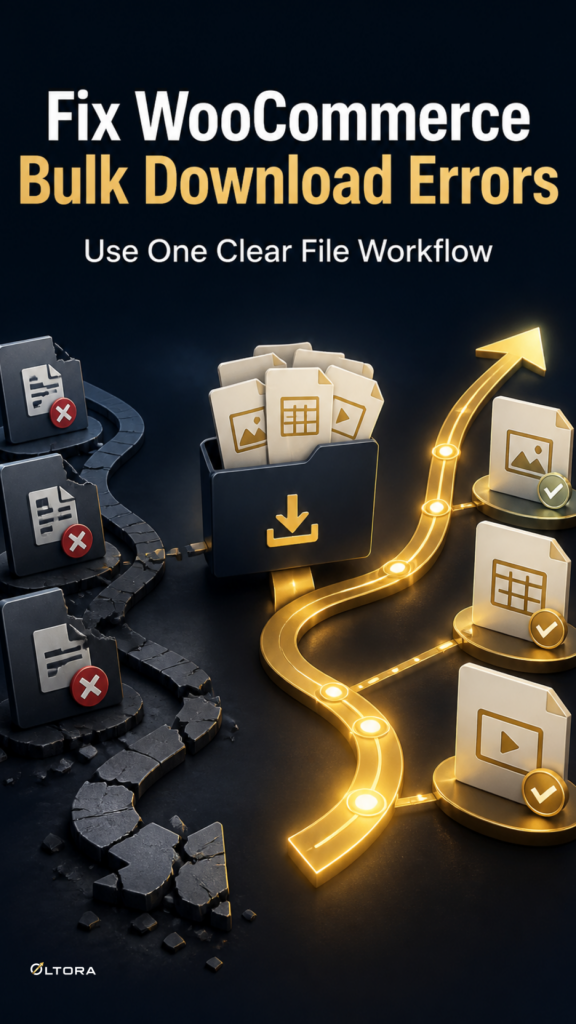
As a WooCommerce digital product catalog grows past basic initial setups, store managers often transition from manual single-item edits to automated bulk workflows. However, scaling your operations introduces strict server requirements that can suddenly interrupt routine catalog maintenance. When digital store teams attempt to assign multiple files across dozens of products using File Bulketor – Bulk Downloadable Files for WooCommerce, updates can occasionally fail or be explicitly rejected by the system. This failure is rarely caused by the file selections themselves. Instead, it typically stems from a mismatch between WooCommerce download protection settings and the underlying web server configuration.
Understanding how your server handles file delivery is essential for maintaining a stable digital store. WooCommerce offers multiple download delivery methods, including Force Downloads, X-Accel-Redirect, X-Sendfile, and Redirect Only. When an administrator initiates a bulk file assignment across a growing inventory, security constraints require the store to use secure server handling. If a server falls back to insecure redirect handlers, the application halts the assignment to protect file integrity.
Diagnosing the WooCommerce Bulk Download Redirection Error Path
When bulk assignments are rejected, the underlying cause is usually tied to server redirection protocols. Secure file delivery depends on configuring your hosting environment to serve protected copies without exposing direct URLs. Mature store architectures that migrate from basic shared hosting to advanced Nginx or Apache environments frequently encounter configuration drift in their download rules.
- Redirect Only Configuration: Leaving WooCommerce configured to use plain redirection creates insecure links that expose file paths directly to users.
- Missing Server Modules: Attempting to use X-Accel-Redirect or X-Sendfile without the corresponding server module enabled forces the environment into an unstable state.
- File Path Restrictions: Selecting assets outside approved directories or relying on arbitrary remote URLs breaks the secure connection between the WordPress Media Library and WooCommerce download storage.
When these diagnostic signals appear, store administrators must inspect both the WooCommerce product settings and the server configuration files before attempting another bulk update.
Establishing a Secure Recovery Workflow
Recovering from a bulk download rejection requires a methodical adjustment of your environment settings rather than bypassing security protocols. Follow this operational checklist to restore normal catalog workflows:
First, navigate to your WooCommerce product settings and verify the designated file download method. Ensure the store is actively utilizing Force Downloads or a properly configured server-level header method like X-Accel-Redirect. If the system was previously operating on an insecure redirect fallback, update the method to meet secure delivery standards.
Second, confirm that all target digital assets are selected directly from the WordPress Media Library. Avoid manual filesystem paths or arbitrary remote URLs that bypass native attachment handling. For every selected Media Library item, the system creates a randomized copy in the WooCommerce download storage area, ensuring that customer download permissions are cleanly managed through standard order workflows.
Finally, re-run your bulk file assignments through the standard WooCommerce product screen. By aligning your server’s redirection rules with secure download policies, your team can manage software packages, PDF guides, ebooks, templates, and digital archives without encountering administrative roadblocks.