
Custom Development
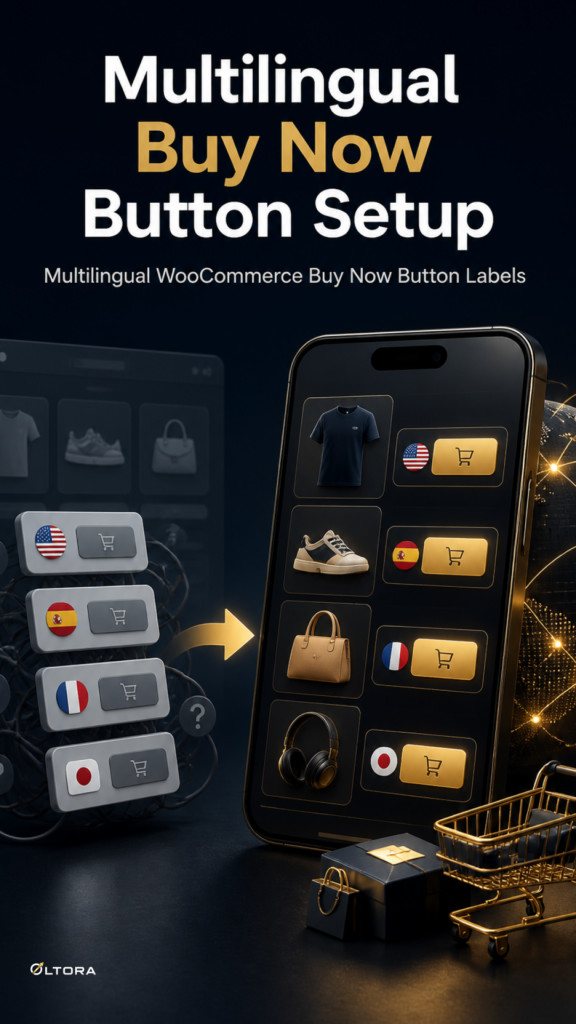
Managing Button Text Translations for International WooCommerce Stores at Launch
Oct
Navigating Multilingual CTA Configuration During Initial Setup
When international store operators configure a new multilingual WooCommerce storefront, establishing a frictionless purchasing journey requires more than translating standard catalog descriptions. Store administrators frequently adjust action labels on product pages to align with regional dialects or brand messaging. However, bypassing the standard cart page introduces specific translation coordination needs. When you implement Oltora Buy Now for WooCommerce to transition high-intent shoppers straight to checkout, the button text must communicate immediate purchase intent clearly across every active locale without disrupting native WooCommerce routing.
Where Custom Button Strings Live in Translation Workflows
In a standard WooCommerce environment, interface strings are registered through localized language packs or translation management plugins. When a store introduces customized call-to-action wording such as Acquista ora, Compra subito, Jetzt kaufen, or Acheter maintenant, those strings must map cleanly to active regional endpoints. If translation files do not recognize a custom button label registered in plugin settings, multilingual switchers can occasionally fall back to default English strings or trigger minor mismatch warnings during browser language swaps.
Verifying Multi-Currency and Locale Alignment
International shops often pair direct-purchase buttons with regional currency switchers and localized payment gateway extensions. During initial setup, administrators should verify how localized button labels behave when a visitor changes currency codes mid-session. Because the plugin is built to preserve native WooCommerce checkout and payment gateway flow without replacing payment logic, translation verification should focus on ensuring that active form handlers accept the translated button value alongside the correct currency parameters.
Practical Steps for International Button Label Verification
Before launching a multilingual direct-checkout workflow live, run a structured verification check across your active languages:
- Inspect Translation Registry: Confirm whether your translation management plugin detects custom button labels in the plugin settings screen rather than treating them as hardcoded theme elements.
- Test Regional Switchers: Switch currencies and browser locales on a simple product page to ensure the localized call to action renders correctly before the shopper clicks through to checkout.
- Verify Variable Product States: Ensure that disabled or ready states on variable products display the appropriate localized text when required attributes are selected or missing.
By verifying these translation strings during initial configuration, international store managers ensure that direct-checkout shortcuts remain clear, trustworthy, and culturally natural for every regional audience.