
Custom Development
When IMAP and SMTP setup gets stuck in WordPress
Aug
When the mailbox is the problem, WordPress feels broken
You can have a working business email address and still be unable to use it inside WordPress. The plugin may be installed correctly, the inbox may be active, and the site may be fine. Then the connection fails at the point that matters most: IMAP will not pull mail in, SMTP will not send mail out, or a secure connection setting blocks the handoff between the site and the mailbox.
That kind of problem is frustrating because it rarely looks dramatic. There is no big error message that explains the fix. Instead, you get a setup screen that keeps asking for the same details, a test that does not complete, or a mailbox that only works halfway. For a business owner, that means wasted time and a support queue that is hard to describe clearly.
Oltora Inbox was built so you can read and reply to real business email inside WordPress, and with WooCommerce it can also show customer order details beside the conversation. When the connection itself is what is slowing you down, the Oltora Inbox Support Upgrade is the add-on meant for configuration and troubleshooting help on an existing license.
What usually goes wrong during setup
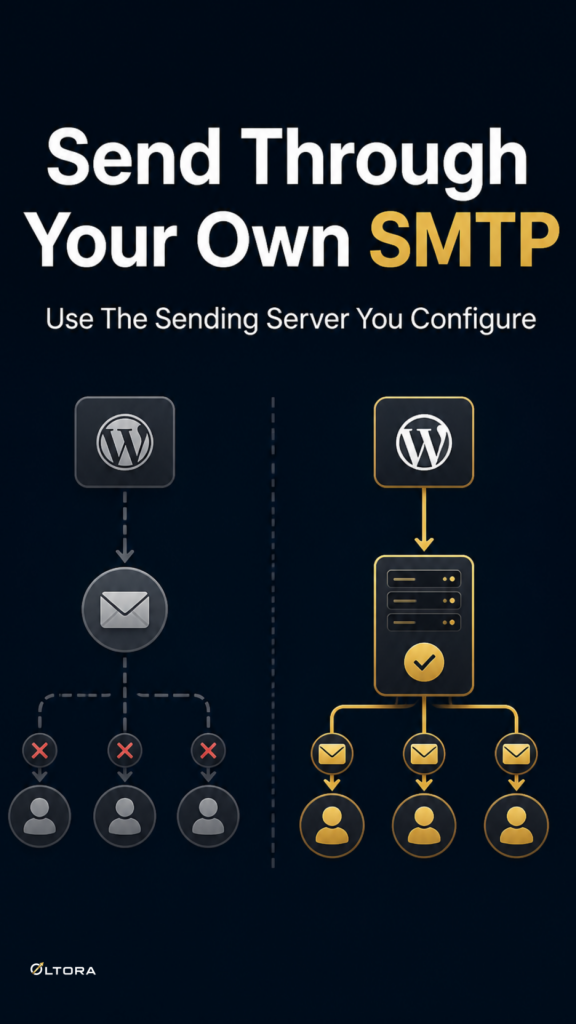
IMAP and SMTP sound like separate technical terms, but in practical terms they answer two different questions. IMAP is about getting mailbox content into WordPress. SMTP is about sending messages back out reliably. If either side is configured incorrectly, the whole inbox workflow feels incomplete.
The most common setup issues are usually small and specific:
- The IMAP host, username, or password does not match the provider’s requirements.
- The SMTP settings are correct in principle, but authentication fails.
- A port or secure connection option does not match what the provider expects.
- The email provider requires an app password instead of the normal account password.
- A previously working mailbox stops connecting after the provider changes a setting.
Those problems are easy to underestimate because they often look like one issue when they are really several small ones. A connection test may fail because the server address is wrong, or because the username format is wrong, or because the mailbox now needs a different authentication method. Fixing the wrong piece can make the setup feel even more confusing.
Why “just try another setting” is a weak plan
When people troubleshoot email connections on their own, they often move from one guess to the next. That can work if the setup is simple and the provider is forgiving. It is a poor approach when the mailbox has stricter rules or when the WordPress site depends on the inbox for customer communication.
A better approach is to check the setup in the order it is used:
- Confirm the mailbox details the provider expects.
- Check whether IMAP and SMTP are both enabled where they need to be.
- Review secure connection and port settings together, not separately.
- Decide whether authentication uses the normal password or an app password.
- Test the connection again after each change so you know what actually improved.
That sequence matters because it keeps you from changing five things at once and losing the thread. If a connection starts failing after a provider update, the real problem may be a single changed rule rather than a full reconfiguration. In that case, the fastest path is not a complete rebuild. It is a targeted review of the current settings.
Where support is useful and where it stops
Not every email issue belongs in a plugin support request. If the problem is specifically about Oltora Inbox configuration, IMAP/SMTP troubleshooting, or connection settings for the mailbox you are using with the plugin, support can help you work through the case. The Support Upgrade includes two email-based support interventions during a 12-month period, and each intervention covers one defined configuration or troubleshooting issue for one Oltora Inbox installation and one connected mailbox.
That limit is useful because it sets the expectation clearly. You are not buying a second plugin license, and you are not adding a general IT department to your account. You are attaching technical help to an existing Oltora Inbox license for the kinds of email connection problems that most often block setup.
The included support is aimed at problems such as:
- finding the correct IMAP settings;
- finding the correct SMTP settings;
- checking ports and secure connection options;
- reviewing username configuration;
- understanding whether an app password is needed;
- troubleshooting connection failures inside Oltora Inbox;
- basic provider-specific mailbox guidance when it directly affects the setup.
What it does not cover is just as important. It does not include custom development, server administration, malware removal, hacked-site recovery, full mailbox migrations, domain transfers, or repair of a third-party provider outage. If a request goes beyond the included scope, it may need a separate service or quotation.
Why the license link matters
The Support Upgrade is not a separate plugin with its own installation. It stays attached to the same Oltora Inbox license you already have. During checkout, you provide your existing license key so the support entitlement can be associated with that record. That keeps the support tied to the same site and the same product context instead of turning into a separate account trail.
For a customer, that has a practical upside: when the same mailbox issue returns later, the support history belongs to the same license record. You are not starting from scratch with a different product or a different activation path. You are extending the help around the tool you already use.
When this is the right kind of help
This kind of support makes sense when the plugin is the right fit and the remaining obstacle is the connection work. A few examples are easy to imagine: you can access your mailbox in webmail, but Oltora Inbox will not connect through IMAP; SMTP authentication fails after a provider changes a rule; or a secure connection setting needs to be checked against the provider’s current requirements.
If that sounds like your situation, the value is not in adding more software. It is in shortening the path from “the mailbox should work” to “the mailbox actually works.” That usually comes down to a careful review of the right settings, not a larger stack of tools.
For readers who are still at the stage of using Oltora Inbox itself, the main plugin page explains the base product. If the inbox is already installed and the remaining problem is a setup issue, the support upgrade is the more precise next step. And if you want to understand how the plugin fits into day-to-day email handling inside WordPress, the article How to manage a real business inbox inside WordPress gives useful context.
Keep the problem narrow before you ask for help
The cleanest support request is the one that names one mailbox, one installation, and one failure. “IMAP will not connect on this site” is easier to resolve than a long list of unrelated email frustrations. So is “SMTP stopped working after the provider changed settings” because it gives support a real starting point.
That narrow framing saves time on both sides. It helps you avoid turning a configuration issue into a general email investigation, and it gives the troubleshooting process a clear boundary. If the issue is inside the scope of Oltora Inbox support, that boundary is exactly what makes the intervention effective.
For customers who already own Oltora Inbox and need help getting the mailbox connection right, the Support Upgrade is a practical way to keep the work inside the same product and the same license, without buying another plugin just to get a few well-defined troubleshooting sessions.