
Email Marketing
Why IMAP and SMTP details matter before you connect WordPress email
Aug
When a mailbox “should work” but does not
Most business owners do not start with an email setup plan. They start with a working address, a support queue, and the hope that WordPress will simply connect to the mailbox without much drama. Then the friction begins. The inbox might be accessible in webmail, yet the connection inside WordPress refuses to behave as expected.
That gap usually comes down to one thing: the mailbox is not a single switch. It depends on the right IMAP and SMTP details, and those details have to match the provider’s requirements exactly. If you are trying to bring your existing business email into WordPress, the first question is not “Does the plugin have email features?” It is “Do I know which connection details this provider actually expects?”
Oltora Inbox is built to work with an existing IMAP/SMTP mailbox, so the connection layer matters before anything else. If the basics are off, the inbox never gets far enough to become useful.
IMAP and SMTP do different jobs
Confusion often starts because IMAP and SMTP get mentioned together as if they were one thing. They are not.
- IMAP is the side that lets WordPress read and manage the mailbox content that already exists.
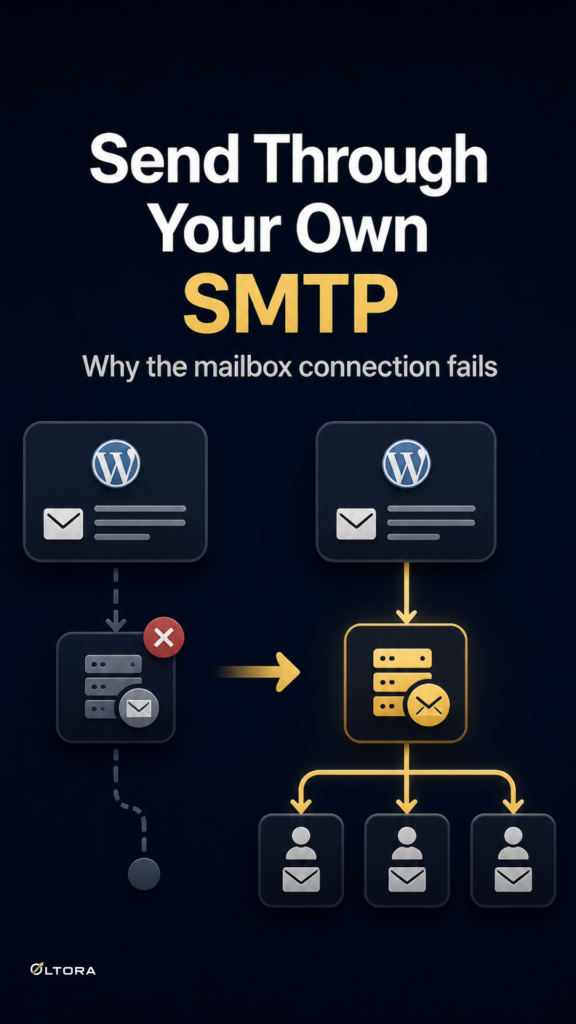
- SMTP is the side that sends outgoing mail through your provider.
That split matters because one half can be configured correctly while the other half is still wrong. A mailbox may accept incoming access but fail when you try to send a reply. Or the reverse may happen: sending works, but the inbox cannot be read from inside WordPress.
If you are checking support emails, order questions, or customer replies from the dashboard, both sides need to be right. A usable inbox is not just about seeing messages appear. It also has to let you continue the conversation.
What usually trips people up
When a connection fails, the obvious guess is often “WordPress is broken.” In practice, the issue is more likely to be one of these:
- the email address, username, or password does not match the mailbox exactly;
- the IMAP server or port is different from what you assumed;
- the SMTP server or port is set for the wrong provider;
- the account needs a secure connection setting that was missed during setup;
- the mailbox uses a provider rule or app password instead of the normal password you usually type elsewhere.
Those are not exotic problems. They are the ordinary details that separate a clean connection from a frustrating one. If the provider documentation is unclear, it is easy to copy the wrong value into the wrong field and spend time chasing a problem that is really just a mismatch.
Why Reply-To behavior can make the setup look stranger than it is
Even when the mailbox connects, email can still behave in ways that look odd if you are expecting every message to work like a simple notification. Reply behavior depends on the sender, the recipient, and the address that the other side sees as the correct place to answer.
That matters for business support because customers often reply to the address they can see in the thread. If the mailbox is not configured cleanly, or if the outgoing side is not set up with the right SMTP details, the conversation can feel inconsistent even though the underlying issue is still technical rather than editorial.
For a WooCommerce store, that is especially noticeable when a customer writes about an order, a return, or a product question. You want the thread to stay readable, the reply to go out through the right mailbox, and the workflow to remain anchored to the same business address people already know.
A practical way to check whether you are ready
Before you connect a mailbox inside WordPress, it helps to separate the task into a few simple decisions:
- What mailbox am I actually using? Confirm the real business address, not a guessed variation.
- Which provider owns it? The server and authentication details come from that provider, not from WordPress.
- Do I have the right credentials? Some accounts require an app password or another provider-specific credential.
- Am I configuring both directions? IMAP for reading and SMTP for sending are separate.
- Do I need secure connection settings? The mail server may expect SSL/TLS or STARTTLS.
That checklist does not solve the connection by itself, but it keeps you from treating all mailbox failures as the same problem. A setup that is missing one field is very different from a provider account that needs a different type of authentication.
Why this matters when your team works in WordPress
The reason people try to connect business email to WordPress is not abstract convenience. It is usually control. You want to handle the website, the store, and the conversation without bouncing between webmail and the admin area every few minutes.
That only works if the mailbox connection is dependable. If setup is shaky, the inbox becomes another place to troubleshoot instead of a place to work. Once the connection is stable, though, the benefit is straightforward: you can keep your existing mailbox with your current provider and manage it from the dashboard where you already run the site.
For stores and service businesses that reply to customers all day, that control matters more than novelty. The less time you spend asking where the message lives, the more time you spend answering it.
Where Oltora Inbox fits after the connection is solved
Oltora Inbox does not create a new email account. It connects to the mailbox you already have through IMAP and SMTP. That makes the connection step the foundation, not a side detail.
Once the mailbox is connected, the plugin is meant to let you read and reply from inside WordPress, while keeping your provider in place. For WooCommerce stores, it can also surface customer order information beside the conversation when the sender matches a customer or order. That is useful, but only after the mailbox itself is speaking the right language.
If your goal is to turn WordPress into a place where business email feels manageable rather than scattered, the setup question comes first. Get the provider details right, confirm the secure connection requirements, and make sure IMAP and SMTP are both aimed at the same mailbox. The rest of the workflow has a chance to work only when that base layer is sound.
When the connection is clear, the inbox stops feeling like a guess.